Oru is a chat-first AI sales desk. Describe who you want to reach; it finds and scores prospects, writes a sequence in your voice, and holds every send until you approve it.
Oru was born out of necessity. The sales team kept asking whether we knew any AI platforms they could use for outbound, and whether one could live inside an app we had already built. Everything they tried either sent email on its own or buried the important decision behind a dashboard of filters. So I decided to build one.
The agent can find, write, and queue. It cannot skip you.
A chat for outbound
New chat interface
Oru is a chat-first AI sales desk. You describe who should hear from you, in one sentence: a city, a company size, the job that actually feels the problem. The desk finds and enriches a short list of prospects, scores each one for fit, writes a multi-step sequence in your voice, and holds every send until you approve it.
Leads
Application edit modal
Every draft lands as a card. You can approve it, hold it, or rewrite the line that sounds wrong. Hold is a complete answer. Results show up as artifacts beside the chat: prospect lists, sequences, and charts such as replies this week. Saved lists, tasks, pipeline conversion, and a weekly performance view sit on the desk's home screen.
Application modal
Plugging into the tools sales already uses
Integrations page
Sending happens only after approval, through Composio: Gmail, Outlook, Google Calendar, Calendly, HubSpot, Salesforce, Pipedrive, Attio, Apollo, Hunter, LinkedIn, and Slack, plus any MCP server. The model sees two gateway tools and discovers each integration's tools on demand instead of loading them all up front. Integrations have their own page rather than hiding inside settings.
Chat runs on Kimi through OpenRouter. The yes/no checks (fit, intent, duplicates, and approval) go to a separate judge model through OpenRouter's Decisions API, with a fallback, so the writer never grades its own work. New workspaces start empty and only fill from real actions and connected providers. There are no demo leads hiding in production.
Models selection
Stack:Next.js, React, TypeScript, and Tailwind CSS on the front end. Convex holds the schema, live queries, scheduled AI actions, and crons. Better Auth handles Google sign-in, OpenRouter serves the models, and Composio connects the sending and CRM tools. The chat, streaming, artifacts, and motion are built on Whirl by Anterra, under the MIT license; the sales desk on top is Oru.
Onboarding dark modeOru in dark mode
Ovra
First threejs attempt to design a bike shopping cart website
Screenshot 2026-10-18 at 9.42.27 PMScreenshot 2026-10-18 at 9.43.02 PMScreenshot 2026-10-18 at 9.43.09 PMScreenshot 2026-10-18 at 9.42.48 PMScreenshot 2026-10-18 at 9.44.06 PM
UseOru
Oru is a chat-first AI sales desk. Describe who you want to reach; it finds and scores prospects, writes a sequence in your voice, and holds every send until you approve it.
Oru was born out of necessity. The sales team kept asking whether we knew any AI platforms they could use for outbound, and whether one could live inside an app we had already built. Everything they tried either sent email on its own or buried the important decision behind a dashboard of filters. So I decided to build one.
The agent can find, write, and queue. It cannot skip you.
A chat for outbound
New chat interface
Oru is a chat-first AI sales desk. You describe who should hear from you, in one sentence: a city, a company size, the job that actually feels the problem. The desk finds and enriches a short list of prospects, scores each one for fit, writes a multi-step sequence in your voice, and holds every send until you approve it.
Leads
Application edit modal
Every draft lands as a card. You can approve it, hold it, or rewrite the line that sounds wrong. Hold is a complete answer. Results show up as artifacts beside the chat: prospect lists, sequences, and charts such as replies this week. Saved lists, tasks, pipeline conversion, and a weekly performance view sit on the desk's home screen.
Application modal
Plugging into the tools sales already uses
Integrations page
Sending happens only after approval, through Composio: Gmail, Outlook, Google Calendar, Calendly, HubSpot, Salesforce, Pipedrive, Attio, Apollo, Hunter, LinkedIn, and Slack, plus any MCP server. The model sees two gateway tools and discovers each integration's tools on demand instead of loading them all up front. Integrations have their own page rather than hiding inside settings.
Chat runs on Kimi through OpenRouter. The yes/no checks (fit, intent, duplicates, and approval) go to a separate judge model through OpenRouter's Decisions API, with a fallback, so the writer never grades its own work. New workspaces start empty and only fill from real actions and connected providers. There are no demo leads hiding in production.
Models selection
Stack:Next.js, React, TypeScript, and Tailwind CSS on the front end. Convex holds the schema, live queries, scheduled AI actions, and crons. Better Auth handles Google sign-in, OpenRouter serves the models, and Composio connects the sending and CRM tools. The chat, streaming, artifacts, and motion are built on Whirl by Anterra, under the MIT license; the sales desk on top is Oru.
Onboarding dark modeOru in dark mode
SleekSign
SleekSign is a document-signing workspace. Place fields on a PDF, assign signer roles, share packet links, and collect signatures with audit trails.
In my workplace, the HR wanted every one to sign some document so they sent the document to everybody. However, you needed to find a way to sign the doc, i.e find an e-document app, sign it, & then send it back. People complained because that was a tedius and uncomfortable way to do that. Thus, I decided to simplify & solve this problem. I built SleekSign as the solution.
Building SleekSign, I realized that the visible act of signing a document is only a small part of the real problem. Dragging a signature onto a PDF is straightforward. The difficult work is everything around it: assigning the right fields to the right people, distributing the correct signing links, preserving an audit trail, finalizing one authoritative document, and later proving that the file has not changed.
A signature should be part of a verifiable workflow, not decoration placed on a PDF.
Building the signing workflow
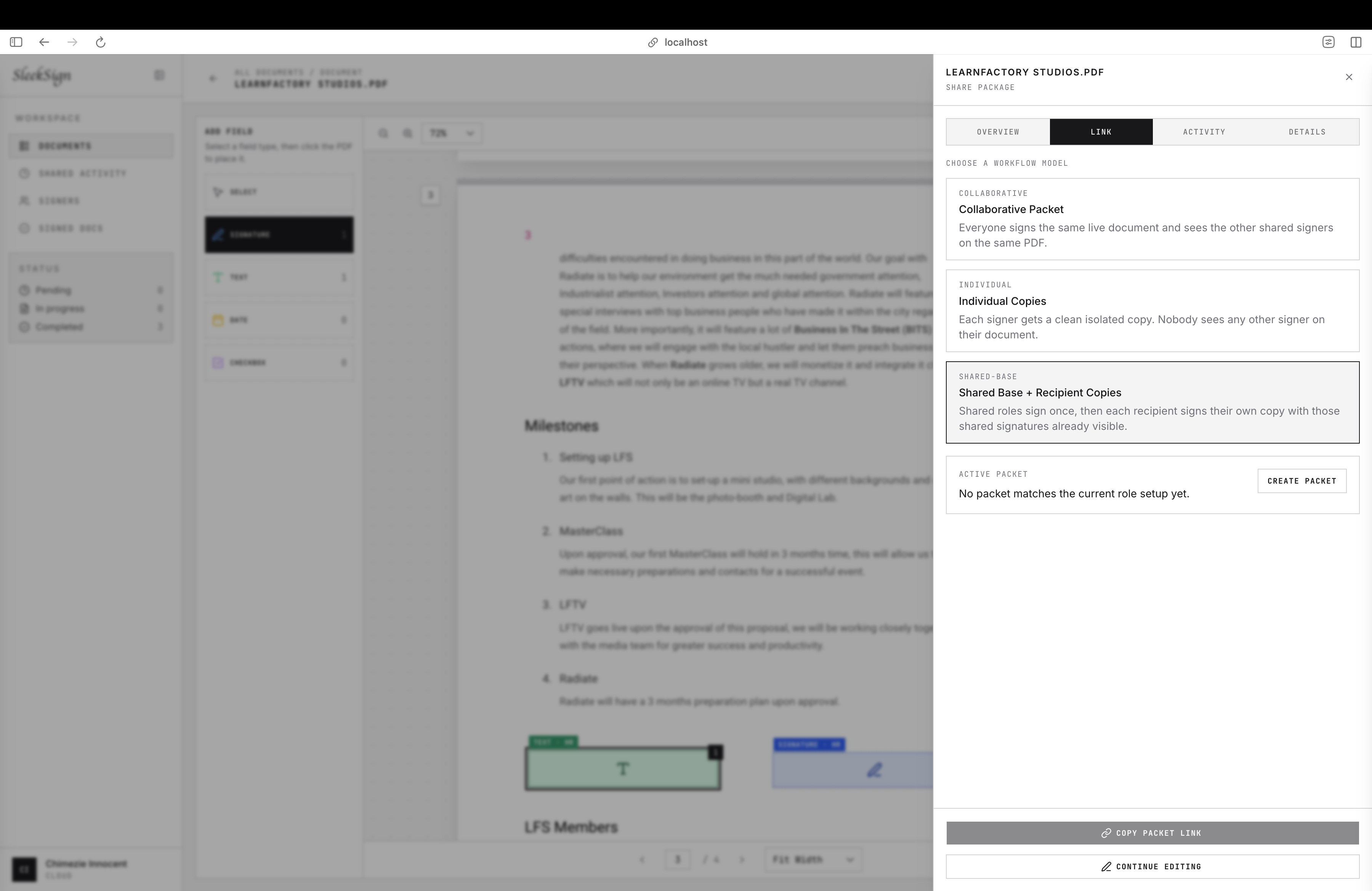
SleekSign is a document-signing workspace. A sender uploads a PDF, places signature, text, date, and checkbox fields, assigns them to signer roles, and shares individual or group links. Signers can type, draw, or upload a signature. The product supports collaborative packets, individual copies, shared-base workflows, CSV bulk sends, reminders, and a grouped audit timeline.
SleekSign Dashboard
The editor forced me to think spatially. PDF coordinates, browser coordinates, zoom levels, page rotations, and responsive layouts all have to agree or a field will land somewhere different from where the sender placed it. That made the editor as much an engineering problem as a design problem.
Making finalization mean something
Building SleekSign, I extended the platform for 3 types of signature packets:
Collaborative packet (Everyone signs the same live document):
HR, employee, and witness work on one packet, so each completed signature becomes visible inside the same shared agreement.
Shared-base copies (Company signs once, recipients countersign their own copy):
This means that the employer or HR signature is shared across every recipient copy, while each employee or contractor only sees their own private signing section.
Individual copies (One template, separate copies for each signer):
This means, every recipient signs their own copy, so nobody sees anyone else’s signature, date, or private form data. This is the basic and exactly the problem scenario that led me to build SleekSign.
3 Packet models
I later pushed the project beyond collecting marks on a page. When a packet is finalized, SleekSign hashes the PDF, seals the audit chain, creates a canonical verification manifest, and asks Google Cloud KMS to sign its digest with ECDSA P-256/SHA-256. This was also the first time I learned about KMS (considered AWS initially but went with Google because I didnt want to create an AWS account just for it when I'm already using Google for auth).
The resulting receipt records the exact KMS key version used. A public verification flow can then hash an uploaded PDF, rebuild the manifest and audit-chain root, retrieve the public key, and verify the signature locally. If the PDF changes by one byte, verification fails.
The production application reaches KMS through Vercel OIDC and Google Workload Identity Federation, so there is no long-lived service-account JSON key stored in the deployment. There is also no unsigned fallback: if signing, storage, or audit validation fails, finalization fails.
Stack: The application uses SvelteKit, TypeScript, and Tailwind CSS. PDF.js renders documents, pdf-lib creates finalized files, and signature_pad captures drawn signatures. PostgreSQL and Drizzle ORM store workflow state, S3-compatible object storage holds documents, Resend delivers signing links, and Google Cloud KMS protects the signing key.
What I learned
SleekSign taught me to separate what a product can prove from what its interface implies. The system can prove that a particular PDF matches a receipt signed by SleekSign's protected key and that its stored audit chain is intact. That does not automatically prove every signer's real-world identity, and it is not a replacement for a regulated certificate authority.
That boundary matters. Trust grows when the product is precise about its guarantees, fails clearly, and preserves enough evidence for someone else to verify the result.
SleekSign homepage walkthrough
Chikọta
A bookmark workspace for capturing, organizing, and finding links, with reminders to revisit saved content and a browser extension for quick capture.
Tweets on X, articles in browser bookmarks, links buried inside bookmark folders, and tabs we refuse to close because they might be important someday.
The problem is that these things eventually end up scattered everywhere.
I use multiple browsers and, over time, my bookmarks grew across all of them. I also had the habit of leaving important tabs open instead of bookmarking them because I knew there was a good chance I'd forget about the bookmark entirely. I love Arc browser and have been using it as my default browser for over a year, but one thing that frustrated me was how inactive tabs would eventually close & get archived. Whenever that happened, I'd have to dig through my history trying to remember what I had open.
I had also come across browser extensions built specifically for bookmarking, but the few ones I checked out, I found they stored bookmarks locally in the browser. That doesn't solve the problem for me. If my bookmarks live in that browser's local storage, then I still need that particular browser and potentially that particular device to access them. Thus, that defeats the entire purpose of what I wanted:
Save something once, then access it anytime, anywhere, and from any device.
Building Chikọta
Chikọta
Early this year, I built a simple version of this solution for myself. The idea was deliberately straightforward: whenever I found something I wanted to keep, instead of bookmarking it on X, leaving a tab open, or adding it to yet another browser folder, I'd paste the link into Chikọta. Then I could find it later from any device.
Chikọta is an Igbo word meaning "to gather."
The name fits what I was building — a single place to gather all the things on the internet I wanted to come back to.
Chikọta about me modal
Bookmarks shouldn't just sit there
While using the first version, I realized another problem with bookmarks: Sometimes, simply saving something isn't enough. There are links I save because I genuinely need to act on them later — this could be an article I want to read, a tool I want to try, documentation I need for a project, or something I need to revisit on a particular day.
So I added reminders.
A bookmark can have a reminder attached to it, and Chikọta can notify me through a device notification or email when it's time to revisit it.
Search modal
This changed the product slightly in my head. Chikọta wasn't just becoming a place to store links. It was becoming a place to remember why I saved them in the first place.
Search modal brown theme
Rethinking the experience
A few months later, I returned to the project.
The first version worked, but it was very obviously something I had built to solve a problem quickly. I wanted to explore what the product could feel like if I treated the experience and visual design with the same level of attention as the functionality. After all, I'm a Frontend Engineer. Even a private tool I use myself deserves to feel considered.
I looked at a few interfaces and websites, specifically EchoTab, I liked the design choice and I used those as references while designing a second version.
But the redesign wasn't only visual.
I also started thinking about where the act of bookmarking actually happens. Usually, I'm already inside a browser when I discover something worth saving. Opening another website, copying a URL, navigating to Chikọta, and pasting it introduces unnecessary friction. So V2 extends Chikọta outside of the main application.
There’s now a browser extension that lets me right-click a page or link and save it to Chikọta. It opens the app in a new tab and adds the link automatically. The extension is simply a way in; when I’m signed in, the bookmark lives in my Chikọta account and is available across devices.
I also added a desktop widget for quickly accessing bookmarks without needing to open the browser at all. The goal was to make Chikọta less like a destination I had to remember to visit and more like a small utility that was available whenever I needed it.
Version 2
Current Chikota Dashboard
Engineering Chikọta
Stack: Chikọta uses SvelteKit, TypeScript, and Tailwind CSS for the interface. Drizzle ORM and PostgreSQL persist the bookmark library and its relationships.
A few decisions shaped how Chikọta works across these different surfaces:
The browser extension is an entry point, not another bookmark store. Right-clicking a page or link opens Chikọta with its details ready to save automatically. I also added a small prompt when a URL is copied. Both flows lead back to the same account-based collection rather than storing bookmarks inside the browser.
The desktop experiences follow the conventions of their platforms. WidgetKit on macOS works within fixed sizes and intentionally limits interaction, so anything requiring text input opens the companion app. On Linux, I use a resizable desktop window instead, which allows bookmarks to be added, searched, and organized directly.
Desktop access has its own authentication flow. The desktop apps use an account-issued token to communicate with the same bookmark API as the web application, without relying on an active browser session.
Saved links remain useful offline. Each desktop app keeps a local copy of the last synchronized collection, so bookmarks can still be browsed and opened when there is no internet connection.
What I learned
Building Chikọta reinforced something I've increasingly come to believe about product design:
The best interface isn't always another interface.
The first version solved the storage problem, but it still required me to adapt my behavior around the product. The browser extension, reminders, and desktop widget came from asking a different question: How can the product adapt to the way I already behave? It also reinforced the difference between making a feature convenient and making the underlying system genuinely accessible.
A browser extension alone wasn't enough. If the data remained trapped inside that browser, I would just be creating another bookmark silo. The extension needed to be an input mechanism, not the database. That distinction shaped one of the core ideas behind Chikọta: the experience can exist across browsers and devices, while the user's collection remains unified. It also became an exercise in balancing engineering and design.
I wasn't designing an interface first and then figuring out how to implement it, nor was I building functionality and adding polish afterward. The product evolved through both at the same time; interaction decisions affected the technical architecture, and technical possibilities shaped the experience.
Chikọta started as a tiny utility I built because I was tired of losing things on the internet. It eventually became an exploration of how something as ordinary as bookmarking could be made calmer, more accessible, and more intentional.